
Appearance
The left pane
The pane on the left stays where it is as you move from tab to tab. It holds what belongs to the whole project: opening and saving it, undo, the choice of view, publishing, and the messages about what the app found. This page goes through it from the top.
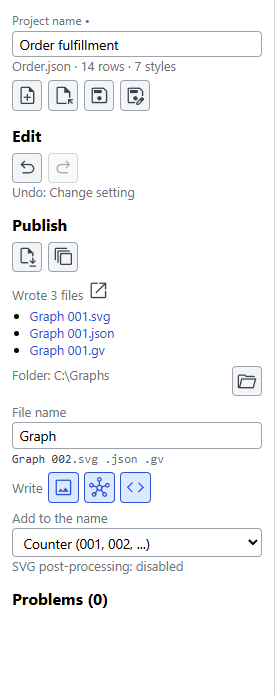
Narrowing the pane
On a small screen, or in a window that shares the screen with another, the pane takes room that the tabs need. The button at the top right of the pane, with a picture of a panel closing, narrows it to a thin strip. Ctrl+B does the same, and brings the pane back (Command+B on a Mac). The same button, now showing a panel opening, is at the top of the strip.
The strip keeps the buttons: New, Open, Save, Save as, Undo, Redo, Publish and Publish all views. A red dot on Save means that the project has changes that are not saved. When the data has problems, or a file could not be opened, a red number under the buttons says how many, and pressing it opens the whole pane to list them. Everything else the pane shows, such as the folder, the file name and the messages, waits for you to open it again. The app remembers which way you left the pane, for the next time you start it.
The project
The top of the pane has the Project name, in a box you can type in. A new project is called Untitled. The name is kept in the project file, and it is the name of the graph on the first line of the DOT, such as digraph "Order fulfillment". It is not the name of the file: you can rename one without the other. Press Enter or click away to keep a new name, or press Esc to put the old one back. A blank name is not accepted. A change of name can be undone like any other change.
A dot after the words Project name means there are changes that are not saved. Under the box are the file the project was saved in, or Not saved yet, the number of rows that have something in them, and the number of styles.
| Button | What it does | Keys |
|---|---|---|
| New | Starts an empty project with the styles every project has. If there are unsaved changes, the app asks before it discards them. | |
| Open | Opens a project file. It also opens the exchange files of the Excel tool. | Ctrl+O |
| Save | Writes the project to its file. The first time, it asks for a name. | Ctrl+S |
| Save as | Writes the project to a new file. | Ctrl+Shift+S |
On a Mac the keys use Command in place of Ctrl.
Dropping a file. Instead of using Open, you can drag a project file from your file manager and drop it anywhere on the window. The mouse pointer shows that the file can be dropped. It opens just as it would with Open, including the question about unsaved changes first. One file at a time, and only a file that ends in .json; the exchange files of the Excel tool also end in .json and open the same way.
If a file cannot be opened or saved, the reason is shown under the buttons. A project is a plain JSON file, and SVG post-processing starts off each time one is opened. If a file cannot be opened, the project you were working on stays as it is, and Save asks for a file name and does not write over the file that could not be read.
Edit
Undo and Redo step through your changes, one change at a time. A paste, a fill or a run of a SQL script is one change. Under the buttons the pane says what the next undo would take back, such as Undo: Change setting. The keys are Ctrl+Z and Ctrl+Y.
Style view
The list appears when the project has more than one view. The view you choose decides which styles are in use, so it changes the diagram, the DOT, the Knowledge Graph and what Publish writes. The file name can carry the view's name, which is how a set of files from different views is told apart.
Publish
Publish writes the graph to files. It never opens them, and it never changes the project. A first publish is described in Getting started.
The two buttons at the top:
- Publish writes the files for the view that is chosen.
- Publish all views writes a set of files for every view.
Both are dimmed when nothing is chosen to be written, and the tip on the button says so. They are also dimmed if the only thing chosen is the diagram and Graphviz is not found.
Where the files go
- Folder is where the files are written. Until you choose one, it is the folder of the project file you have open, and when there is none yet, your Documents folder. The folder button chooses another. The choice is kept until you close the app, and it is not saved in the project.
- File name is the start of each file name. A line under the box shows the name the next publish will use and the kinds of file it will write, such as
Graph All Styles 002.svg .json .gv. The rest of the name, such as where the view and the number go, comes from the File name template under Settings. Publishing explains the template, the placeholders and the styles. - Add to the name keeps a publish from overwriting the last one. Nothing replaces the files, Date and time adds the time of the publish, and Counter adds 001, 002 and so on, carrying on from the highest number that is in the folder.
What is written
The three Write buttons choose the kinds of file. They are lit when on, and any mix is allowed.
| Button | File | Notes |
|---|---|---|
| The picture | The diagram, in the format set under Settings: SVG, PNG, PDF and others | Needs Graphviz. Without it the button is dimmed, and a publish leaves the diagram out and says so. |
| The three joined dots | The Knowledge Graph, a .json file | Does not need Graphviz. |
| The angle brackets | The DOT source, a .gv file | Does not need Graphviz. |
The files of one publish share a name and differ in the extension.
The app will not write over the project file you have open, so a file name that would land on it is refused. It will not write over a .json file that is not a Knowledge Graph either. In both cases nothing is written, and the pane says which name to change.
The files written
After a publish the pane lists the files it wrote. Click a name to open it in the program your computer uses for that kind of file. The arrow beside Wrote 3 files shows the first of them in the folder. An SVG that has script in it, which post-processing can add, asks first.
The list is replaced by the next publish, and it is not kept when you close the app.
SVG post-processing
The last line of the section says whether SVG post-processing is enabled or disabled. It is turned on in the SVG tab, and it is off each time a project is opened. It only changes SVG files.
Messages
Under Publish, the pane lists what the app found. A heading is there only when it has something to say, and some belong to one tab.
| Heading | Shown | What it holds |
|---|---|---|
| Problems | Every tab but Knowledge Graph | Rows that could not be used, with the row number and the reason, such as an edge row with nothing in Related Item, or a closing brace with no opening one. A count of 0 means none. |
| Views | When a change to the views was refused | Why, such as removing the last view, which cannot be done. |
| Style previews | When a preview failed | How many pictures could not be drawn, and the first reason. |
| Graphviz messages | With the diagram, and on the DOT tab | Warnings from Graphviz. With Graphviz verbose messages on, its account of what it is doing. |
| Knowledge Graph messages | Knowledge Graph tab | What was left out of the file, such as a row with a style that is not used in the view. |
| SQL, SQL problems, Filter columns, Data folder | SQL tab | The result of the last run, each line that failed and why, a filter that could not be applied, and a data folder that could not be read. |