
Appearance
The SVG tab
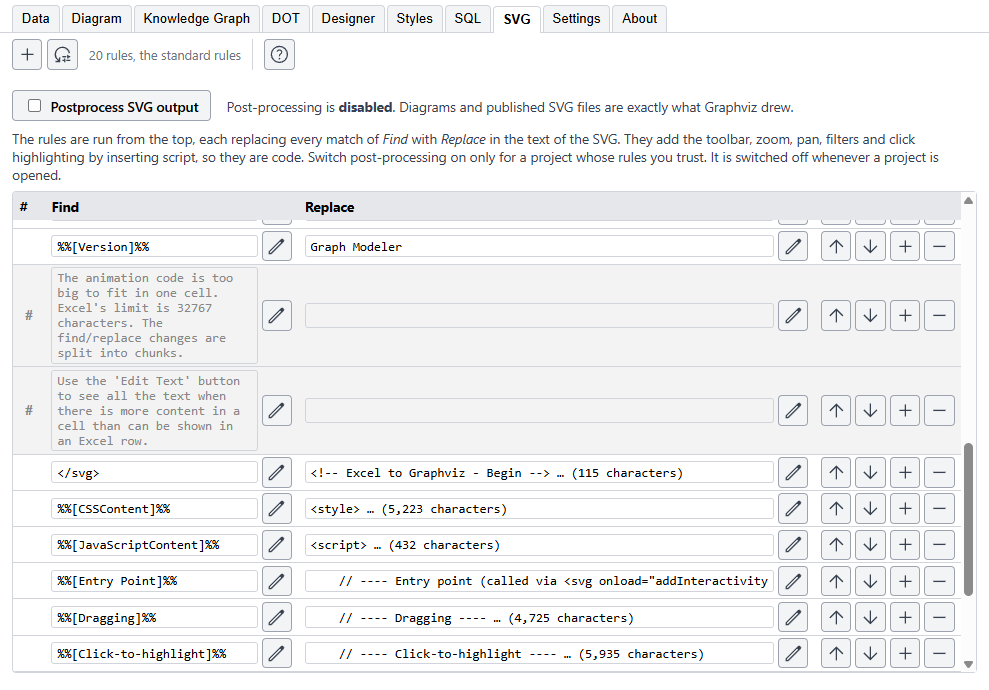
SVG is the picture format that opens in a browser, and a plain one is just a drawing. The SVG tab can add behavior to it: a toolbar, zooming and panning, filters, and highlighting of what you click. It does so by rewriting the SVG text with a list of rules, and the rules add script. That is why this tab is off until you turn it on.
Turning it on
The Postprocess SVG output box is off whenever a project is opened. While it is off, the diagram and every SVG file you publish are exactly what Graphviz drew. Turn it on and the rules are run on the diagram shown and on every SVG written.
Turn it on only for a project whose rules you trust. A project file carries its own rules, and a project that someone else gave you could have rules that do something you did not expect, so the box starts off every time a project is opened, and stays off until you turn it on.
Turning it on also changes how the Diagram tab shows the picture. Without it the picture is an image, and an image cannot show tooltips; with it the diagram is a live page, so a tooltip appears when the pointer rests on an item. See Tooltips.
The rules
A rule has a Find and a Replace. They run from the top, and each one replaces every match of its Find in the text of the SVG. A rule is plain text replacement, with no special codes to learn.
- Add, the plus button at the top, adds a rule. The buttons at the end of a row move it up or down, add one below it, or delete it.
- The pencil beside a cell opens a box with the whole text, for the long script a rule can hold. A cell shows a long text as its start, with the number of characters.
- The # cell comments a rule out, and a commented-out rule is skipped and doubles as a note.
- Standard rules replaces all the rules with the ones that come with the app.
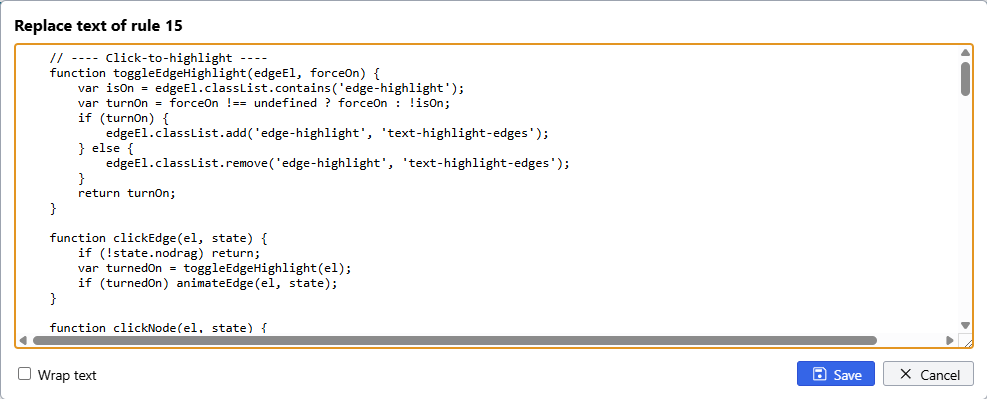
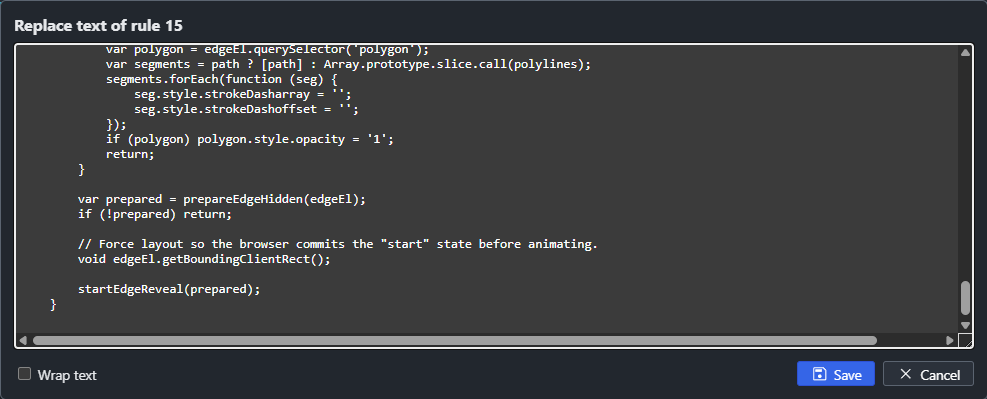
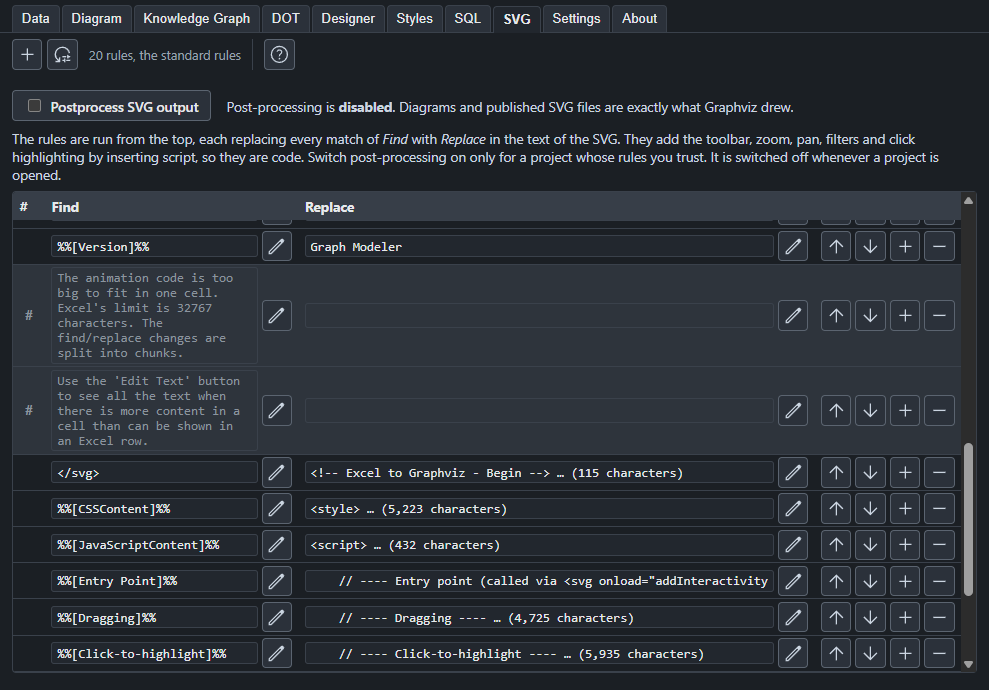
The box shows the text in full, with Wrap text to wrap long lines. Save keeps your changes and Cancel throws them away. The rules above are the standard ones: the first few are notes, and the rest put the toolbar, the zoom and the highlighting into the SVG, one piece to a rule.
The standard rules are based on the work of Bart Brood, in dynamic-SVG-from-Graphviz. They add the toolbar, the zoom and pan, the filters and the click highlighting. Changes to them are shown in the count at the top of the tab.
Why it is a security matter
An SVG file can hold script, and a browser runs the script when the file is opened directly. With post-processing on, the SVG you publish has script in it that you or the person who wrote the rules put there.
- On screen, the diagram runs in a frame with no access to the app or to anything on your computer.
- A published file is only as safe as its rules. Opened in a browser as its own page it can run, so open only SVG files whose rules you trust. When you open a published SVG that has script from the list in the left pane, the app asks first, and the safe answer is the one it starts on.
- A script cannot run if the SVG is only shown as a picture in another page, such as an
<img>tag.
An SVG that has no script, which is what you get with post-processing off, can be opened without a question.
Fonts and images
Bold and italic text only shows in a browser when the font's style is where the page looks for it, so the app adds that to every SVG it writes, with or without post-processing. Which fonts are used, and what happens to them on another computer, is on the Fonts page. A picture inside a node is a link in an SVG file, so it shows only if the file can be found from where the SVG is, such as an images folder beside it.