
Appearance
The Settings tab
Settings are the choices that apply to the whole project, such as how it is laid out and what is written into the graph. They are saved with the project. The ones you flip between often, such as the layout engine, are also buttons on the Diagram tab.
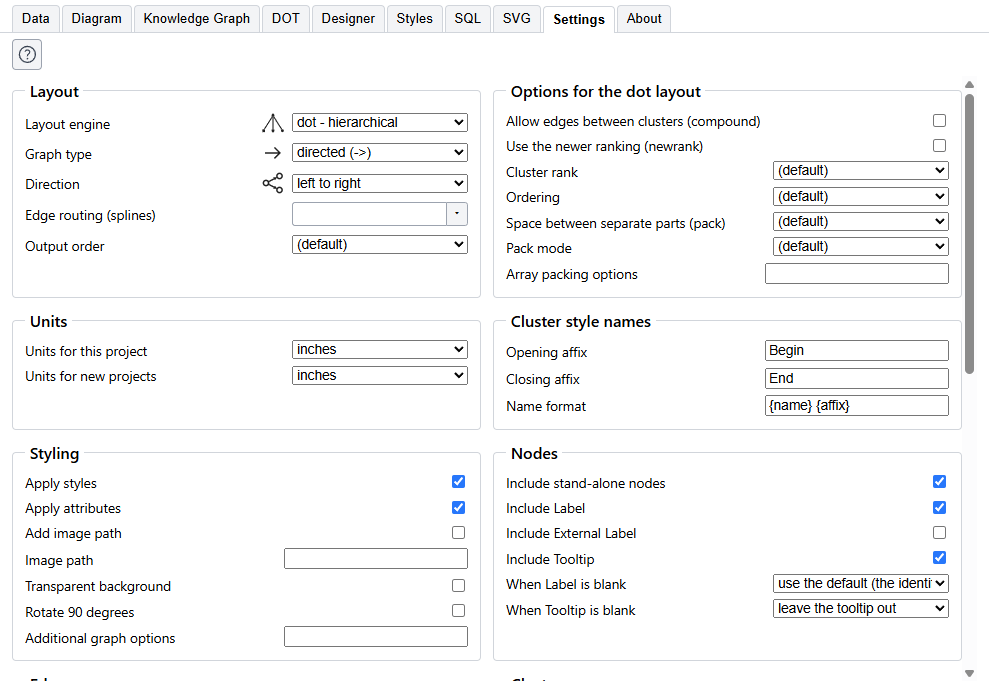
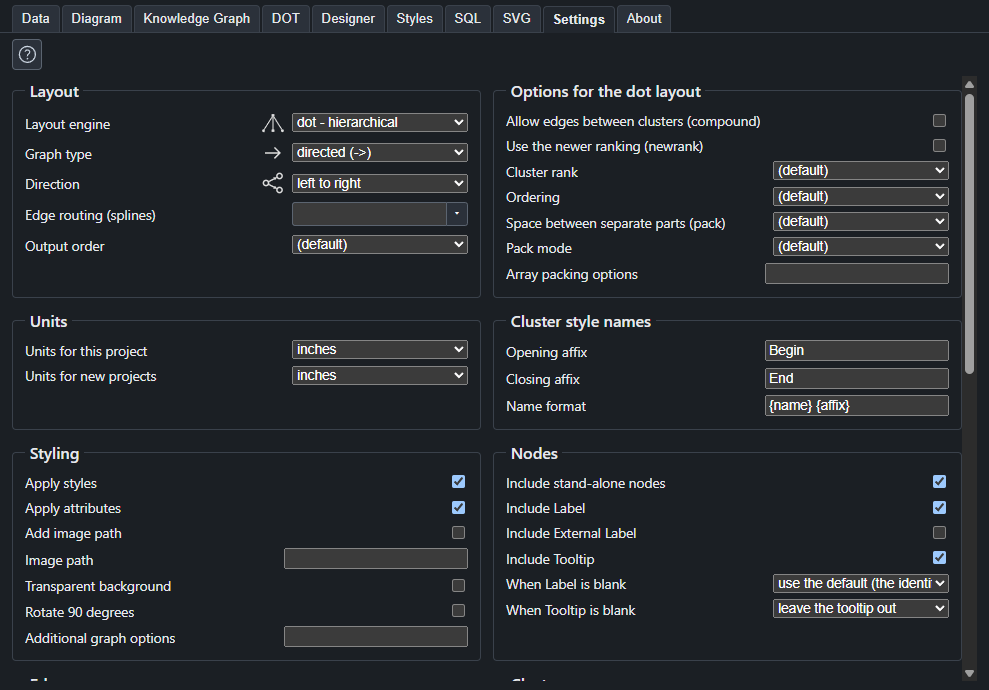
Where a setting has a picture, such as the layout engine, the picture of the one in use is shown beside it.
Layout
| Setting | What it does |
|---|---|
| Layout engine | Which Graphviz engine places the nodes. |
| Graph type | Directed (->) or undirected (--). |
| Direction | Which way the ranks run. Only the dot engine uses it. |
| Edge routing (splines) | How edges are drawn, from curves to right angles to none. |
| Output order | Whether nodes or edges are drawn first, which decides whether an edge crosses over or under a node. |
Options for the layout
This group is named after the layout in use, such as "Options for the dot layout", and shows only the options that layout has.
- dot: edges between clusters, the newer ranking, how clusters are ranked, and the order of the edges out of or into a node.
- neato, fdp and sfdp: how overlapping nodes are moved apart, the dimensions, and for some of them the mode, the model and the smoothing.
- Every layout except patchwork: the space between separate parts, the pack mode and the array packing options, which say how the parts of a graph that are not joined are fitted together. See Units and packing.
Units
| Setting | What it does |
|---|---|
| Units for this project | Inches or millimeters, for the lists and boxes that take a length. Saved in the project file. |
| Units for new projects | The unit a new project starts in. Kept on this computer, not in the project, and chosen from your region the first time. |
See Units and packing for what changes when a unit changes, and what happens when a file is in other units than yours.
Cluster style names
The words added to a cluster's name to make the names of its opening and closing styles: Begin and End to start with, and the format that joins them, {name} {affix}. See Styles.
Styling
| Setting | What it does |
|---|---|
| Apply styles | Use the format of each row's style. Turn it off to see the graph with no styling. |
| Apply attributes | Use the Attributes column of the rows. |
| Add image path and Image path | Where to look for the pictures a style names, in addition to the folder of the project. |
| Transparent background | A graph with no background color. |
| Rotate 90 degrees | Draw the graph on its side. |
| Additional graph options | Raw DOT added to the graph, such as bgcolor=lightgrey;. |
Nodes, Edges and Clusters
Three groups, with the same shape. Each says which of the parts of a node, an edge or a cluster are written, and what to do when one is blank.
- Include choices for the label, the external label and the tooltip. Edges also have the head label, the tail label and ports, and can leave out edges that name an item with no row of its own. A tooltip is written to the DOT and to every published SVG, and a browser shows it when the pointer rests on the node. The picture on the Diagram tab cannot show tooltips; see Tooltips.
- When Label is blank and When Tooltip is blank choose between using the default (the item's name or the edge's name) and leaving it empty.
- Include stand-alone nodes keeps nodes that no edge touches.
- Apply "strict" rules removes duplicate edges, Concentrate edges merges edges that share a path, and Force xlabel placement makes sure external labels are drawn.
Publishing
| Setting | What it does |
|---|---|
| Format | The picture format a publish writes. The list holds what your Graphviz can write. |
| Knowledge Graph layout | Compact, or indented by two or four spaces. |
| File name template | How a file name is put together, from the file name and the view, date, time, a counter and other parts. |
| Leave the view name out when there is only one view | With one view there is nothing to tell apart, so the file name goes without it. |
| File name style | Spaces kept, or turned into underscores or hyphens, or the name written in camelCase, PascalCase or as a web address slug. |
| Digits in the counter | How many digits a numbered file name has. |
Publishing explains how the template, the style and the counter make a file name.
Publishing, advanced holds the Graphviz renderer. The default is Graphviz's own choice, which is best unless you know you need another.
Troubleshooting
Graphviz verbose messages asks Graphviz to describe what it is doing, and its messages show in the left pane. It is for finding out why a layout did something, and it is not saved with the project.