
Appearance
The Styles tab
A style is a name and a format. A row on the Data tab names a style, and the format of that style is applied to the node, the edge or the cluster the row makes. Change a style once and every row that uses it follows.
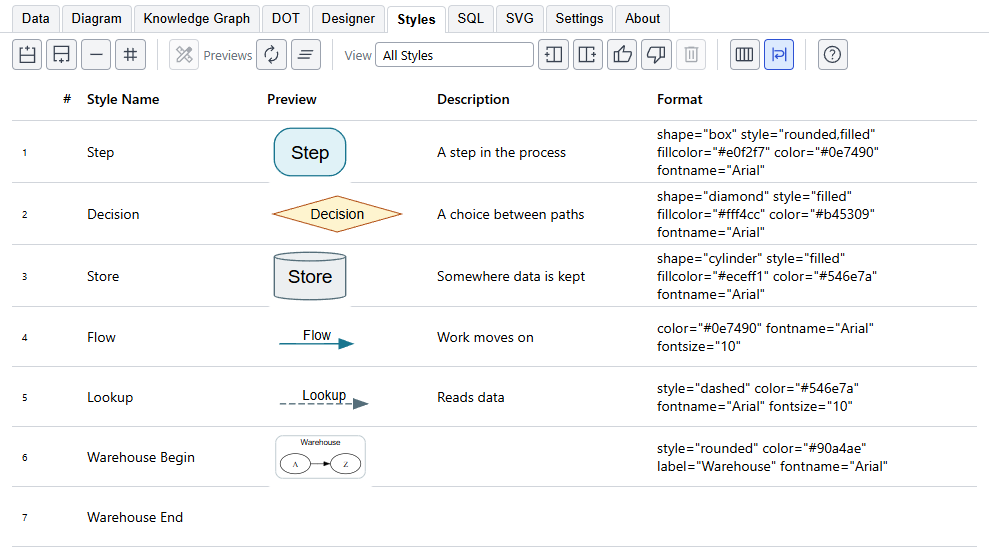
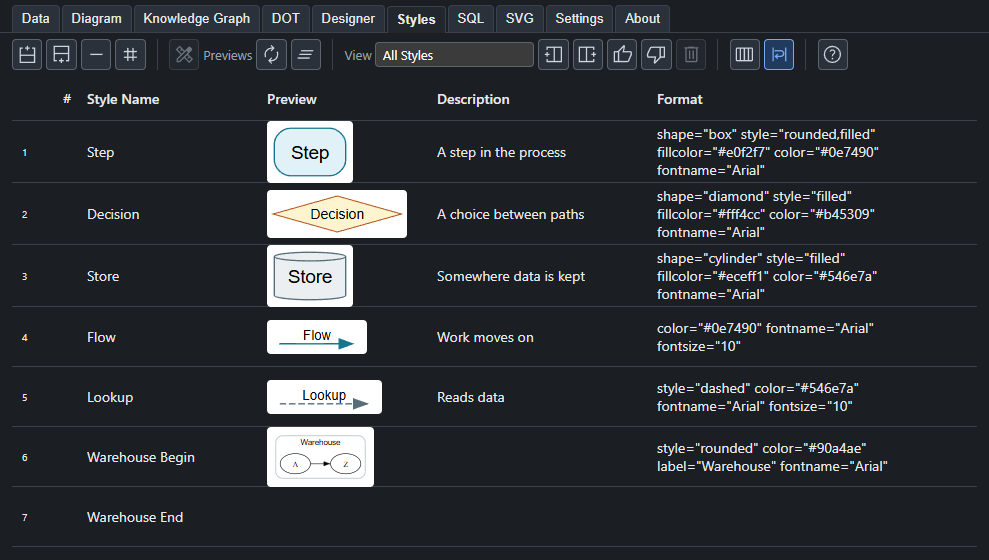
The columns
| Column | What it holds |
|---|---|
| # | Click to comment a style out. A commented-out style is not used. |
| Style Name | What a row types in its Style Name cell. Names are not case sensitive. If two styles have the same name, the first one wins and both are shown in red. |
| Preview | A picture of the style, drawn by Graphviz. It needs Graphviz, and says so when there is none. |
| Description | Your own note. It also goes into the Knowledge Graph. |
| Format | The Graphviz attributes, such as shape="box" style="rounded,filled". Click the cell and a pencil button appears in it; the pencil opens the Designer with this style loaded. See Editing a format in the Designer. |
| Properties | Facts that do not change the drawing but go into the Knowledge Graph, such as kind="app". The pencil opens a small grid. |
| Style Type | What the style is for: Node, Edge, Cluster start, Cluster end, Keyword or Native DOT. |
| One column for each view | Whether the style is used in that view. |
A format can mention {label}, {xlabel}, {taillabel} and {headlabel}. The values from the row are put in their places, so a style can wrap a row's label in a shape of its own. See Placeholders.
Editing a format in the Designer
You can type a format by hand, or build it with the controls of the Designer tab and see it drawn as you go.
- Click the Format cell of the style. A pencil button appears in the cell.
- Click the pencil. The Designer tab opens with the style loaded: its format is read apart and each attribute is set in its own control, and the Designer says which style it loaded.
- Change the controls. The format they make is shown beside the picture.
- Press Save to styles. The style of that name on the Styles tab is updated.
The pencil is there for Node, Edge and Cluster start styles. The other types, Cluster end, Keyword and Native DOT, have no controls in the Designer, so their formats are edited in the cell. A pencil in a Properties cell opens a small grid for those instead.
The six styles every project has
Every project has six styles named after the types: node, edge, subgraph-open, subgraph-close, keyword and native. A row that does not name a style takes the one that matches what the row is, so a change to the node style changes every node that has no style of its own.
Views
A view is a named set of styles in use. Each view is a column of yes and no. A style that is off in a view is not used when that view is drawn, and a row that names it is left out.
Views are how one set of data makes several diagrams. A view that leaves out the styles for the details gives the overview, and one that turns them all on gives the whole picture. Publishing can write one view or every view.
The view buttons on the toolbar act on the view whose column you last clicked:
- The box holds its name. Type a new name to rename it.
- The two column buttons add a view before or after it, with the same styles in use.
- The thumbs up turns every style on in the view, and the thumbs down turns every style off.
- The trash can removes the view. The last one cannot be removed.
Previews
The Previews buttons draw every picture again, and remove the pictures and the Preview column. Previews are drawn a few at a time, so a project with many styles fills in as it goes. A style whose format names a picture file draws it, found the same way as in the diagram.
Naming clusters
A cluster is drawn with two styles, one that opens it and one that closes it. Under Settings, "Cluster style names" sets the words added to a cluster's name for these two, Begin and End to begin with, and how they are joined. So the cluster Warehouse can have the styles Warehouse Begin and Warehouse End, and the first can carry the box's label and colors.