
Appearance
Find and replace
One small bar finds text in the tab you are looking at, and on the tabs where you type data it can also replace it. It opens over the top right of the window, beside the tabs, and does not move anything on the page.
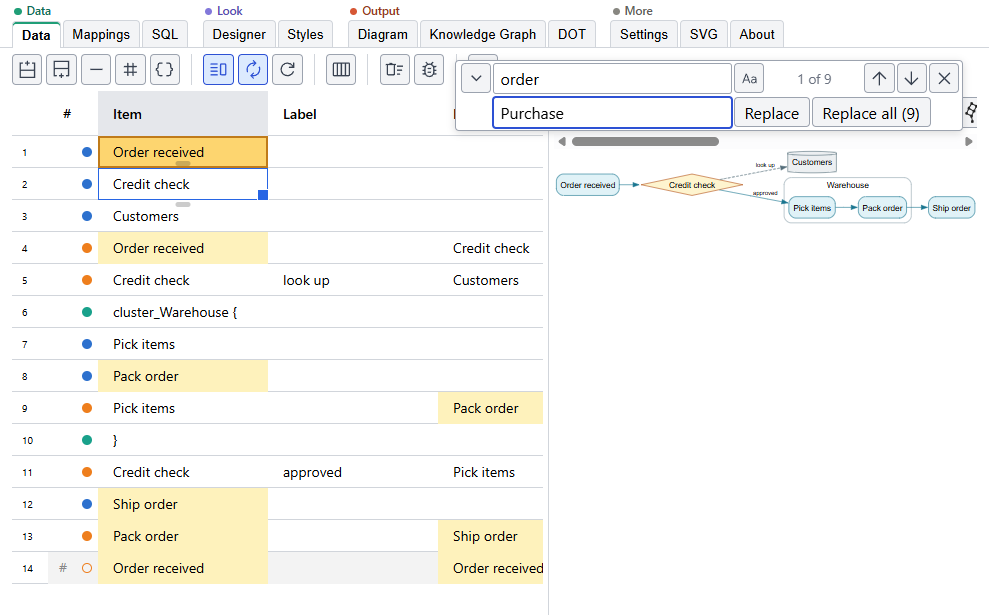
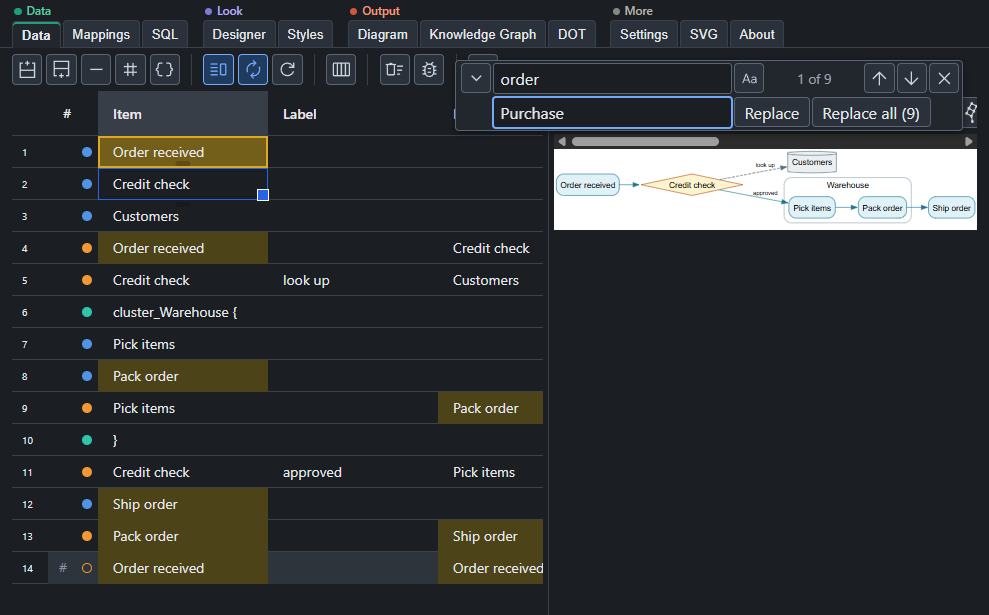
Finding
Press Ctrl+F on the Data, Styles, SQL, DOT or Knowledge Graph tab, and type. If you had text selected, the bar starts with it. The bar shows the place among the matches, such as 3 of 17, and the tab marks every match, with the current one in a stronger color and scrolled into view.
| Key | What it does |
|---|---|
| Ctrl+F | Opens the bar, or goes back to its box with the text selected, so that typing replaces the term. |
| Enter and Shift+Enter | The next match and the one before. They go round at the ends. |
| F3 and Shift+F3 | The same, from anywhere. |
| Alt+C | Matches the case: with it on, Node does not find node. It is off at first. |
| Esc | Closes the bar and puts the cursor on the match you were at, or selects it in the DOT text. |
The bar belongs to the window and not to a tab. It keeps what you typed when you go to another tab, and looks again in that tab. On a tab that cannot be searched, such as Settings, it is not shown. The tab also looks again when its text changes, so the count stays true while you edit.
What each tab searches
- Data, Styles and SQL search the text in the cells, row by row. A match is a cell, so a cell that holds the term twice counts once. The column headings are not searched, and neither are the columns you hid with the Columns menu. Rows you commented out are searched like any other.
- DOT searches the text, and every place where the term is counts, with the match painted over the colored text.
- Knowledge Graph searches the raw text by line, and the tree by its keys and values. Switching between Raw and Tree looks again in the new view.
Letters with accents are not treated as the plain letter: zolw does not find żółw. Capital and small letters are treated as the same unless you turn on Match case.
Replacing
On the tabs where you edit, press Ctrl+H to show the Replace row under the Find box, or press the arrow at the left of the bar. Type the new text, then:
- Replace (or Enter in the Replace box) changes the current match and goes on to the next one.
- Replace all (or Ctrl+Alt+Enter) changes every match in the tab, and says how many cells it will change on the button, such as Replace all (58).
Replacing is for the cells you can type in: the text columns of the Data, Styles and SQL tabs. It changes them as typing would, so the diagram, the DOT text and the Knowledge Graph follow.
- It is one step to undo. A Replace all is a single entry, named Replace in cells, and one Ctrl+Z puts every cell back. A single replacement is named Replace in a cell.
- It works on the tab you are on. Replace all never changes another tab.
- Rows you commented out are changed too, as the Excel tool did.
- The new text is taken as you type it. Nothing in it is a pattern:
$and\are ordinary characters, an empty Replace box deletes the found text, and the new text is not searched again, so replacingawithabdoes not run on. - Some cells cannot take a replacement. A cell where you choose from a list, such as the Style Name or Style Type, and a column that is only shown cannot be changed by it. The bar says how many of those cells held the text, so nothing is passed over in silence, and you can change them by hand.
Look before you replace all
Step through a few matches first, and read the count on the button. If it is more than you expected, turn on Match case or make the term longer. A replacement that goes too far is one Undo away, but it is easier not to need it.
The DOT and Knowledge Graph tabs are for reading, so they have no Replace row, and Ctrl+H does nothing there.
What it does not do
It has no patterns (regular expressions), no whole-word option, and no search across all the tabs at once. A search finds text in one tab, and a replacement changes one tab.