
Appearance
Simple mode
Someone builds a model. Someone else only needs to use it: choose this month's file, type the department they care about, and look at the graph. Simple mode is a window for that second person. It shows what is needed to run a model and nothing that could change it, so there is little to get wrong.
The switch is in the title bar. The window is in Full mode every time the program starts, and a project can ask to open in Simple mode (see Save a copy for sharing).
What the window has
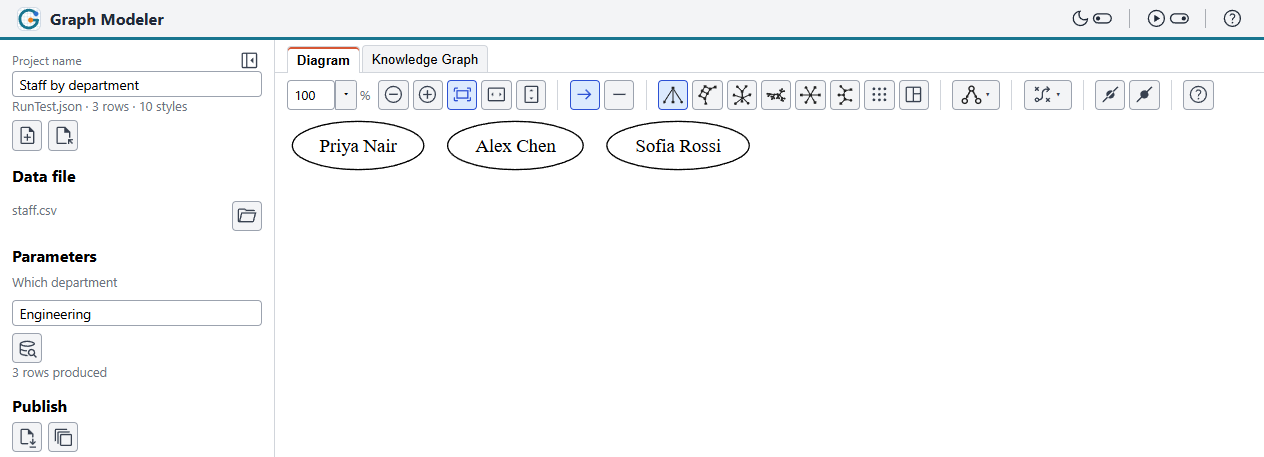
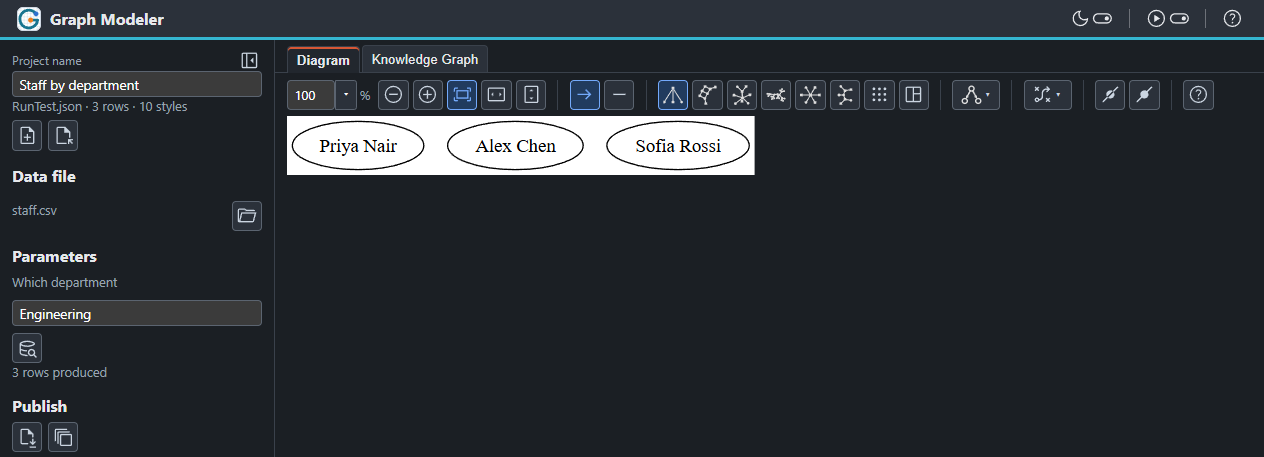
- Two tabs, Diagram and Knowledge Graph. The tabs that make a model, such as Data, Styles and SQL, are not there.
- A left pane with New and Open, the name of the project (which cannot be changed here), the Data file or Data folder, the Parameters, the Run button, and the Publish section, which works as it does in Full mode: see the left pane.
- No Save, no Save as, no Undo and no Redo. A session in Simple mode never changes the project, so it has nothing to save. The keys do nothing either.
Under the buttons the pane keeps the choice of Style view when the project has several, and the messages about the graph.
On a small screen, narrow the pane once the model has been run, so that the diagram has the room: the button at the top of the pane, or Ctrl+B. The narrow strip keeps New, Open, Run and Publish, so a model can be run again, for example when its workbook was revised, without opening the pane. See Narrowing the pane.
Running a model
- If the model reads a file you choose, the pane has a Data file with a folder button beside it. Choose your own copy of the file. The choice is kept on this computer.
- Under Parameters, each value the model asks for has a box, with the question it asks. Type a value, or leave the one the model gives.
- Press the Run button, the same one the SQL tab has. The pane says how many rows were made, and the graph appears on the Diagram tab.
A model whose script ends with PREVIEW AS KNOWLEDGE GRAPH shows the Knowledge Graph tab instead. Press Enter in a parameter box to run it from the keyboard.
A run replaces the rows of the graph, and the project does not count as changed: nothing is saved or marked as unsaved, so closing the program asks nothing. The rows stay in memory, and Publish writes them. The next run replaces them. If you open the file again, you see what the author saved.
Parameters
Each parameter is a placeholder of the model's script. The author gives it a value, which is what the box shows until you type another, and a question, which is the box's label. Without a question, the box is labelled with the placeholder's name, with spaces in place of underscores.
- A value you type is used in place of the author's, for every line of the script that sets that placeholder.
- A value can hold an apostrophe or an ampersand, such as
O'ConnellorAsia & Europe, and the model still runs. Where the script puts the value inside quotes, the program makes it safe. - A box that holds a value other than the model's has a small button beside it, which puts the model's value back.
- The values are kept on this computer, for this file, and are not part of the project. A file that has never been saved cannot keep them, so they last until it is closed.
The files a model reads
What the pane asks for depends on how the author wrote the script.
| The pane shows | When | What to do |
|---|---|---|
| Data file | A line of the script reads the file chosen on the SQL tab. | Choose your own copy with the folder button. |
| Data folder, and a list of file names | The script names its files, such as sales.csv and orders.csv, with no folder. | Choose the folder that holds them. Each name is listed, and a name that is not in the folder is red. |
| Fixed files | A line names a file with a folder or a full path, such as C:\data\sales.csv. | Nothing: they are read where they say. A name that is not found is red, and its hover text shows the path. |
Run waits until every file is found. A name in red says which one is missing. The program does not say more, because the person who can fix it is the one who made the model.
If a line of the script fails for another reason, the pane says how many lines had a problem, and that the author of the model can look at them in Full mode. The rows that the other lines made are still drawn.
Back to Full mode
Press the switch in the title bar again. Nothing was changed, so nothing is lost. If you ran the model, the rows it made are on the Data tab, and the project is not marked as changed.
Making a model that runs well in Simple mode
If you are the author:
- Put the values that change in placeholders, with a comment above each as its question. The Mappings tab can write them for you, and the left pane has a box for each one while you work, so you can try a value and press the Run SQL button.
- Name your data files without a folder, and keep them together. Then whoever runs the model chooses a folder, which is the easy thing to change each month.
- Finish with a
PREVIEWline if you want the graph shown after each run. - Try it: press the Simple mode switch and run it as your reader will.
- When it works, save a copy for sharing, and choose whether the copy carries its results.